21 Expert Steps to Build a Multilingual WordPress Website That Ranks
Key Takeaways
- You’ll choose the right multilingual architecture (subdirectories, subdomains, or domains) and set up hreflang correctly to avoid duplicate-content issues.
- You’ll get step-by-step, tool-specific workflows for TranslatePress, WPML, and Polylang, plus when to pick each based on your site and team.
- You’ll learn an effective manual approach using WordPress Multisite, domain mapping, and string translation for full control without a plugin.
- You’ll implement multilingual SEO best practices, including localized slugs, sitemaps, meta tags, and structured data for every language.
- You’ll ship a polished user experience with a smart language switcher, RTL support, localized forms and checkout, and analytics by language.
In today's interconnected world, the imperative for a multilingual website has never been more pronounced. Whether you're running a personal blog, an e-commerce store, or a corporate site, serving a global audience is now indispensable. A multilingual WordPress website acts as a bridge that removes language barriers between you and your potential users, extending your reach far beyond linguistic confines. This comprehensive guide is your trusted companion for creating a multilingual WordPress site with two primary approaches: plugin-based solutions and manual methods. By implementing these strategies, you can communicate effectively and elegantly with users from diverse regions and cultures.
Geographical borders matter far less online. People from different cultures, backgrounds, and languages converge on the internet to find information, products, and services. If you aim to build a meaningful online presence, you must be prepared to engage this diverse audience. A multilingual WordPress website equips you to transcend the limitations of a single language and connect with users worldwide. We'll explore streamlined, plugin-based solutions for all skill levels and hands-on, manual methods for maximum control—so you can create a multilingual site that breaks language barriers and opens exciting opportunities for global growth.
How a Multilingual WordPress Website Works
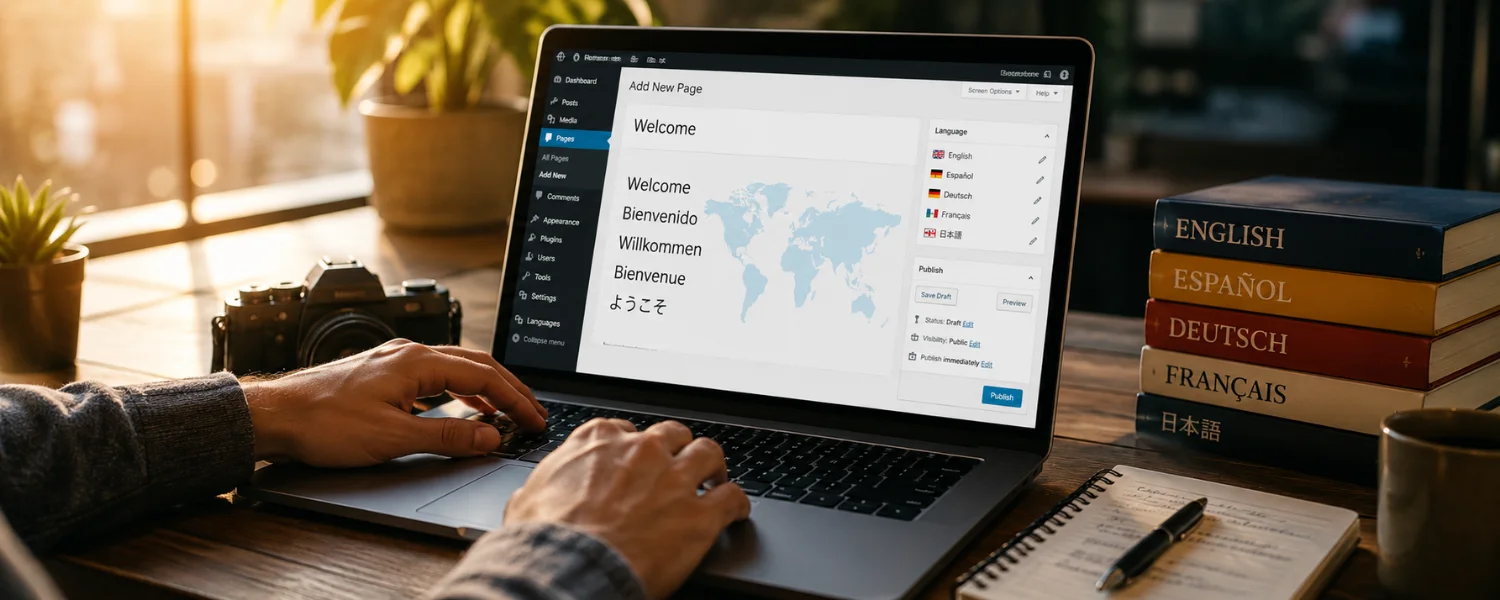
A multilingual WordPress website provides content in multiple languages so users from different linguistic backgrounds can access and understand what you offer. Typically, it includes a language switcher that lets visitors choose their preferred language for a seamless, personalized experience. Behind the scenes, multilingual plugins or a Multisite setup manage language-specific content, URLs, and SEO signals—so each language version can be discovered and ranked independently in search.
Why Invest in a Multilingual WordPress Website
In today's globalized digital landscape, a multilingual WordPress website is more than a convenience—it's a strategic necessity. It expands your reach to broader audiences by breaking down language barriers and making your content accessible worldwide. This inclusivity is essential for tapping international markets and building a truly global presence.
A multilingual site also boosts credibility and professionalism. When users see multiple language options, they perceive your brand as more trustworthy and customer-focused. It improves engagement and retention because people stay longer, bounce less, and take action when content appears in their native language. That translates into more leads, higher conversion rates, and better customer satisfaction—especially when product pages, checkout flows, and support materials are fully localized.
Key Benefits at a Glance
1) Stronger multilingual SEO
- Rank for queries in every target language.
- Target language-specific keywords and intent in titles, slugs, and body copy.
- Use proper hreflang and localized sitemaps to prevent duplicate-content issues.
2) Better user experience and trust
- Serve content, navigation, and UI text in a visitor's preferred language.
- Show cultural fluency with local formats (dates, units), RTL support, and relevant examples.
3) Higher conversions
- Localized product info, CTAs, and checkout remove friction and hesitation.
- Clear support and policies reduce abandonment and returns.
Plan Your Multilingual Strategy First
Choose your language architecture
- Subdirectories (example.com/es/): Simple to manage and best for consolidating authority on one domain.
- Subdomains (es.example.com): Flexible, but slightly more complex for SEO and infrastructure.
- Country-code TLDs (example.es): Strong local signal, highest overhead; best for fully localized, country-specific operations.
Decide the initial language set and rollout
- Start with 1–3 high-impact languages where you already see demand, then expand.
- Plan content parity: which pages must exist in every language at launch?
Define translation quality and workflow
- Machine translation for speed (reviewed by humans for key pages), or human translation for brand-critical copy.
- Create glossaries and style guides to keep terminology and tone consistent.
- Set ownership: who translates, reviews, publishes, and updates?
Set KPIs and measurement
- Per-language organic traffic, conversions, revenue, and engagement.
- Localization coverage (percentage of priority pages fully localized).
Multilingual SEO Essentials (Don't Skip These)
- Hreflang tags: Ensure each language version points to its alternates and itself (self-referential). Most top plugins add this automatically.
- Localized URLs: Translate slugs for readability and keyword relevance (example.com/fr/chaussures-de-course/).
- Language-specific sitemaps: Submit per-language sitemaps so search engines discover every version.
- Canonical tags: Canonical to the same-language version (not to your primary language) to avoid suppressing translations.
- Meta titles/descriptions per language: Write unique, intent-matching metadata for each page and market.
- Structured data: Localize fields like name, description, and inLanguage in schema where applicable.
- Media SEO: Translate image alt text and captions to match on-page language.
- Internal linking: Link between language equivalents and keep menus and breadcrumbs localized.
- Avoid auto-redirects by IP/Accept-Language that block crawlers; let users choose their language.
Choose Your Build Method: Plugins vs. Manual
Use a plugin when you want speed and a unified dashboard
- Best for most sites: TranslatePress, WPML, and Polylang are mature, well-supported solutions.
- They handle hreflang, language switchers, string translation, SEO, and media out of the box.
- Paid tiers add translation management, WooCommerce support, and pro integrations.
Go manual when you need maximum control
- WordPress Multisite lets you run one site per language with domain mapping.
- Pros: ultimate flexibility, separate plugins/settings per locale. Cons: duplicate admin effort, more maintenance.
- Build with TranslatePress (Step-by-Step) TranslatePress is a user-friendly plugin that simplifies creating a multilingual WordPress website with a live visual editor. It supports both manual and automatic translation (e.g., Google Translate, DeepL).
- Step 1: Install and configure languages
- Install and activate TranslatePress from your dashboard.
- Go to Settings > TranslatePress and add your site's default and additional languages.
- Enable SEO pack options to generate hreflang and language-specific URLs.
Step 2: Translate content in the visual editor
- Open any page or post and click Translate Page.
- Select a string on the page, enter its translation, and save. Repeat for headings, body copy, buttons, and forms.
- Translate images and media text (alt text, captions) to keep UX and SEO aligned.
Step 3: Add a language switcher
- In Appearance or via TranslatePress settings, choose a switcher style (menu item, shortcode, or floating dropdown).
- Place it in a predictable spot (header or main nav) and label languages clearly (names, flags optional).
TranslatePress is an excellent choice if you want a visual workflow and quick time-to-value, especially for content-heavy sites that need accurate, on-page context while translating.
- Build with WPML (Step-by-Step) WPML (WordPress Multilingual Plugin) is a powerful, enterprise-ready solution with robust translation management, advanced string translation, and strong WooCommerce support.
- Step 1: Install core and add-ons
- Install WPML core and recommended add-ons like String Translation, Translation Management, and (if needed) WooCommerce Multilingual.
- Run the setup wizard to define your default and secondary languages, URL format, and switcher.
Step 2: Translate pages, posts, and custom post types
- From your WordPress dashboard, open any post or page to translate.
- Use the WPML Translation Editor to translate titles, content, custom fields (e.g., ACF), and taxonomies.
- Save and review the front-end to confirm layouts and widgets reflect the correct language.
Step 3: Translate categories, tags, and taxonomies
- Go to Posts/Products > Categories (or relevant taxonomy).
- Click the plus icon next to a term to add name and description translations, then save.
Step 4: Create multilingual menus
- Go to Appearance > Menus and select the menu to translate (or create language-specific menus).
- Add the WPML language switcher widget to your desired menu location and style it to match your theme.
Step 5: Translate theme and plugin strings
- Navigate to WPML > String Translation.
- Search or filter for theme/plugin strings and enter translations, then save.
WPML is ideal if you need granular control, team workflows, professional translation service integrations, or full e-commerce localization.
- Build with Polylang (Step-by-Step) Polylang is a widely used, lightweight plugin prized for its simplicity and performance. It offers a solid free version and paid add-ons for advanced needs and WooCommerce.
- Step 1: Configure languages
- Install and activate Polylang, then set your default and additional languages.
- Choose URL format (e.g., subdirectories) and enable media translation if desired.
Step 2: Translate posts, pages, and custom content
- Edit a post or page and use the Languages panel to assign and add translations.
- Repeat for custom post types and widgets as needed.
Step 3: Translate categories, tags, and taxonomies
- Go to Languages > Taxonomies Translation.
- Select your taxonomy (e.g., categories, tags), click the language icon next to each term, add translations, and save.
Step 4: Add a language switcher
- Go to Languages > Settings and configure the switcher style and placement (menu or widget).
- Ensure consistent placement across all templates.
Polylang is a great fit for small to medium sites that want a lean, flexible solution and are comfortable managing translations directly in the editor.
Building a Multilingual WordPress Site Without Plugins (Manual)
Approach: WordPress Multisite (one site per language)
- Enable Multisite and create a network site for each language (example.com/es/, example.com/fr/).
- Map subdomains or custom country domains if preferred (es.example.com or example.es).
- Install a shared theme and replicate key plugins across sites to keep parity.
- Manually mirror content structures and navigation; translate pages and posts per site.
- Add hreflang across language equivalents with a function or SEO plugin that respects Multisite.
- Generate and submit per-site sitemaps; ensure canonical tags point to same-language versions.
Pros: maximum flexibility, different payment gateways or policies per locale, separate performance tuning. Cons: more admin overhead, content duplication risk, and higher maintenance.
Best Practices for Language Switchers and UX
- Place the switcher where users expect it: main nav, header, or a persistent floating element.
- Label clearly with language names in their own language (Español, Français); flags are optional and can be ambiguous.
- Avoid forced geo-redirects; suggest a language gently and let users choose.
- Support RTL languages (Arabic, Hebrew) with proper CSS, fonts, and mirrored layouts.
- Localize forms, validation messages, onsite search, emails, PDFs, and system notifications.
- Adjust formats by locale (dates, numbers, units) and consider multi-currency for e-commerce.
WooCommerce and E‑commerce Localization
- Translate products, attributes, variations, and categories; keep SKUs stable for ops.
- Localize checkout fields, shipping methods, taxes, and transactional emails.
- Offer currency switching and round prices in a market-friendly way; show duties/taxes where relevant.
- Translate on-page trust signals (returns, guarantees, payment badges) to lift conversions.
Performance, Caching, and CDN Considerations
- Ensure your page cache keys vary by language (URL path or query parameter) so users get the correct version.
- If using a CDN, configure caching rules and edge logic to respect language-specific URLs; avoid relying on Accept-Language alone.
- Optimize duplicate media across languages; use shared assets where possible and compress images.
- Test lazy loading, critical CSS, and preconnect hints across all locales.
Analytics and Measurement by Language
- In GA4, segment by language folder or domain and create a custom dimension for language when possible.
- Set per-language conversion events/goals and build dashboards to compare performance by locale.
- Tag campaigns with language UTM parameters; align CRM and email lists by language preference.
Launch Checklist (21 Must-Do Steps)
- Confirm language architecture (subdirectory/subdomain/domain).
- Install and configure your chosen plugin (or Multisite network).
- Set default and additional languages; define URL structure.
- Translate core navigation, header, and footer elements.
- Localize high-impact pages first: home, product/category, pricing, checkout, support.
- Translate meta titles/descriptions and Open Graph/Twitter cards per language.
- Translate slugs for SEO-friendly, readable URLs.
- Add and style a prominent language switcher.
- Enable or add hreflang tags and validate with testing tools.
- Generate and submit per-language sitemaps in your SEO plugin and search engines.
- Check canonical tags point to same-language versions.
- Translate image alt text, captions, and file names where useful.
- Localize forms, email templates, and system messages.
- Validate RTL layouts and fonts if applicable.
- Ensure caching/CDN rules serve the correct language consistently.
- QA all menus, breadcrumbs, internal links, and 404s across languages.
- Test checkout, taxes, shipping, and payments for each language/currency.
- Set up analytics segments and per-language conversion tracking.
- Create a translation glossary and style guide for ongoing updates.
- Train editors on your translation workflow and publishing rules.
- Plan your next language rollout and ongoing optimization cadence.
Original Guidance Refined: Plugin Walkthroughs and Manual Methods
Adapting Your Website Content for Different Languages with TranslatePress: After installing and activating TranslatePress, go to its settings and select the languages you want to add from a wide range of options. Then open any page or post and use the visual editor to translate text, buttons, and UI elements. TranslatePress also lets you translate images and media text, so your entire website reflects each target language. To provide a seamless experience, add a language switcher in your header or navigation. Choose a style that fits your brand; once configured, it appears automatically so users can switch languages effortlessly.
Utilizing WPML for Your Multilingual WordPress Site: Once you've installed and activated WPML and its recommended add-ons, you can add multilingual content with a user-friendly editor. From your dashboard, open a page or post, choose the target language, and translate the title, content, custom fields, and taxonomies. Save when done. WPML also manages translations for custom post types, categories, and tags—keeping your content organized and accessible in every language. To create multilingual navigation, go to Appearance > Menus, make language-specific menus, and add the WPML language switcher widget. Finally, use WPML > String Translation to translate themes, plugins, and other interface text for a fully consistent experience.
Building a Multilingual WordPress Site Without Plugins: While plugins like TranslatePress and WPML streamline the process, you can opt for a manual approach if you prefer full control. A Multisite setup lets you create a site per language, map subdomains or custom country domains, and manage translations independently per site. This method provides flexibility for region-specific features and compliance, at the cost of higher maintenance and careful synchronization.
Utilizing Polylang for Your Multilingual WordPress Site: After installing and activating Polylang, set your site's languages and start translating posts and pages via the Languages panel in the editor. Polylang supports custom post types, taxonomies, and widgets, and you can translate categories and tags by going to Languages > Taxonomies Translation. To add a language selector, go to Languages > Settings, choose your switcher style, and save. The switcher will appear on your site, allowing users to select their preferred language and access localized content instantly.
Common Pitfalls and How to Fix Them
- Thin or partial translations: Prioritize high-traffic, high-value pages for full human review.
- Incorrect hreflang: Validate alternates and self-references; ensure every version points to all others.
- Mixed-language menus or widgets: Use string translation and menu sync features to keep UI consistent.
- Duplicate content suppression: Avoid canonicalizing translated pages to the primary language.
- Inconsistent slugs: Translate slugs systematically and set redirects if you change legacy URLs.
Conclusion
A multilingual WordPress site is one of the highest-ROI upgrades you can make to reach new audiences, build trust, and lift conversions. With the right architecture, a proven plugin or Multisite, and a rigorous SEO and UX checklist, you'll launch confidently—and keep scaling into new markets with a repeatable workflow.